5.1 - Map Editing Tools
Before you can edit any map features, click the Interact with Map Features icon to enter "Edit Mode"
These tools are also explained on platform, just click here - 
| Tool | Icon | Action |
|---|---|---|
| Select |  | Click a feature to select it and unlock advanced editing tools. |
| Move |  | Click and drag a polygon or line feature to change its location. |
| Merge |  | Hold shift to select multiple polygons and click merge to merge them into one feature |
| Split |  | Divide one polygon into two. Draw where you would like the polygon to be split using the tool |
| Delete |  | Delete a polygon or line feature from the map |
| Edit |  | Fine-tune boundaries.Hold Delete and hover over a point to delete or drag points to a new location to amend your boundary |
| Draw (polygon/ line / rectangle) |   | You can directly draw a new line feature / polygon or rectangle feature onto the map using this tool |
| Snap |  | Aligns edges automatically to prevent gaps, but select the tool to turn this off. |
| Overlap |  | Prevents feature stacking automatically but select the tool to turn this off. |
| Undo |  | Revert the last action. |
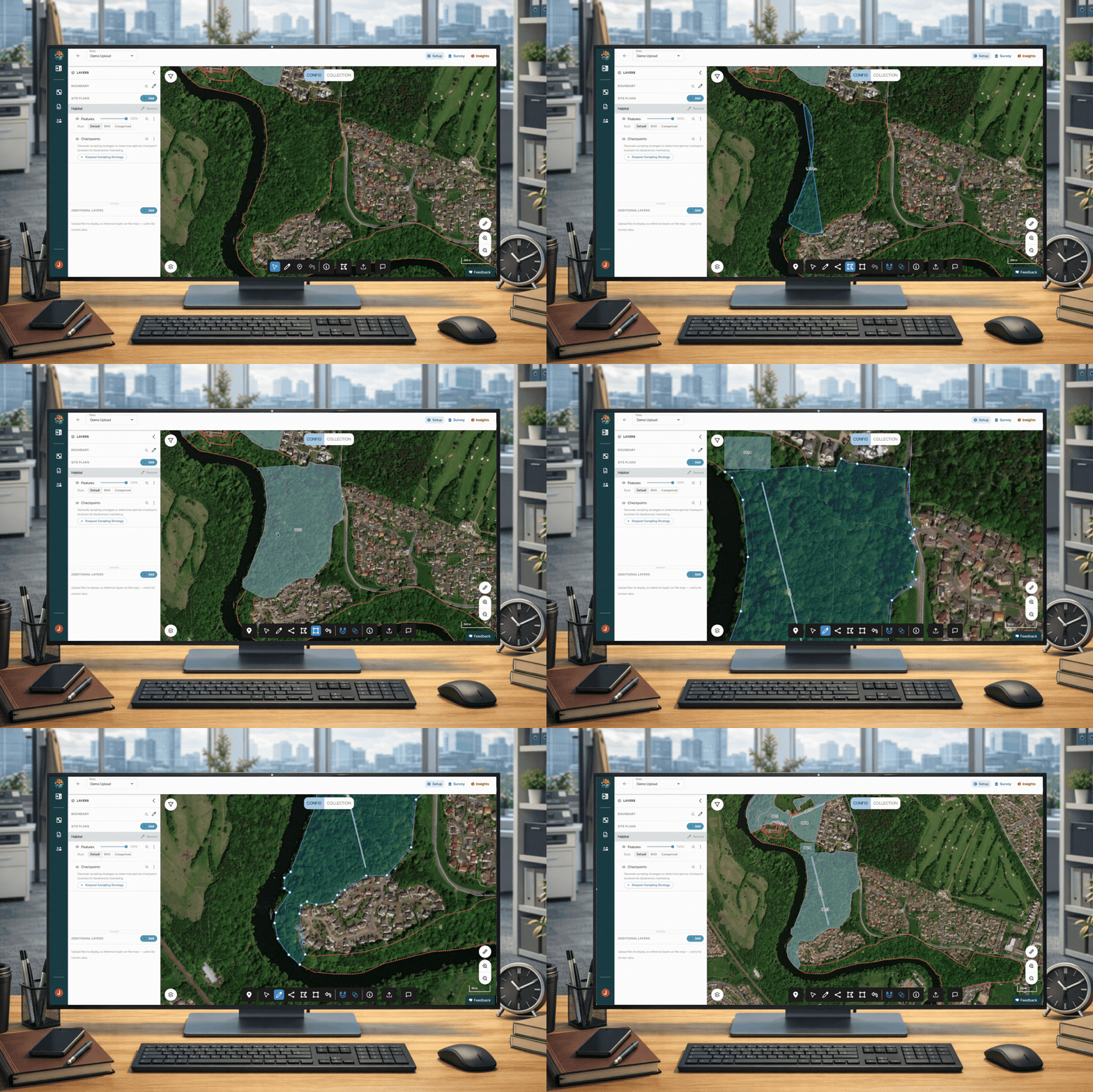
How to draw and edit features (polygon / line / square) using the inbuilt mapping tools
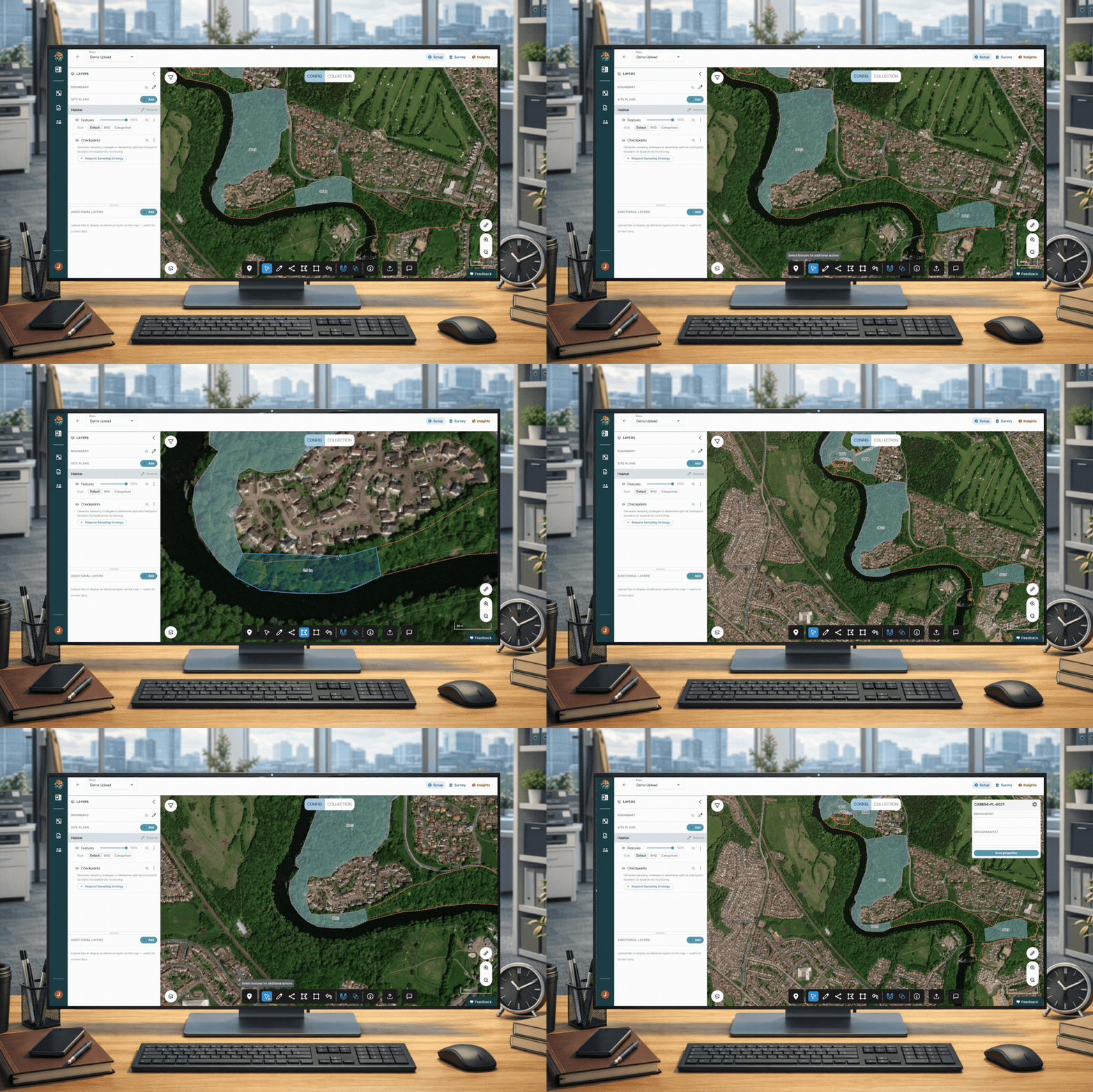
How to move, split, merge and delete a feature using the mapping tools