2.3 - Data Collection
When you're in the field and ready to start collecting data, head to the app and select your project. This displays the checkpoint map, showing every checkpoint the sampling plan has flagged for you to visit.
2.3.1 - Checkpoints 
A checkpoint is a specific spot the sampling plan wants you to visit and collect data from. Each site has several checkpoints, each with one or more tasks telling you exactly what to capture there. The sampling plan itself is set up in advance in Mozaic OS.
Select the checkpoint you want to start with by tapping the icon on the map.
Not selected
Selected 
Complete 
Use your GPS location on the map to navigate yourself. You can use the built-in tools to help you, such as the transect line to guide you, the compass tool to get your bearings, and your distance from the checkpoint is displayed for you also.
⚠️ The app works offline - but make sure to log in / load the sampling plan and have GPS on before you go offline!
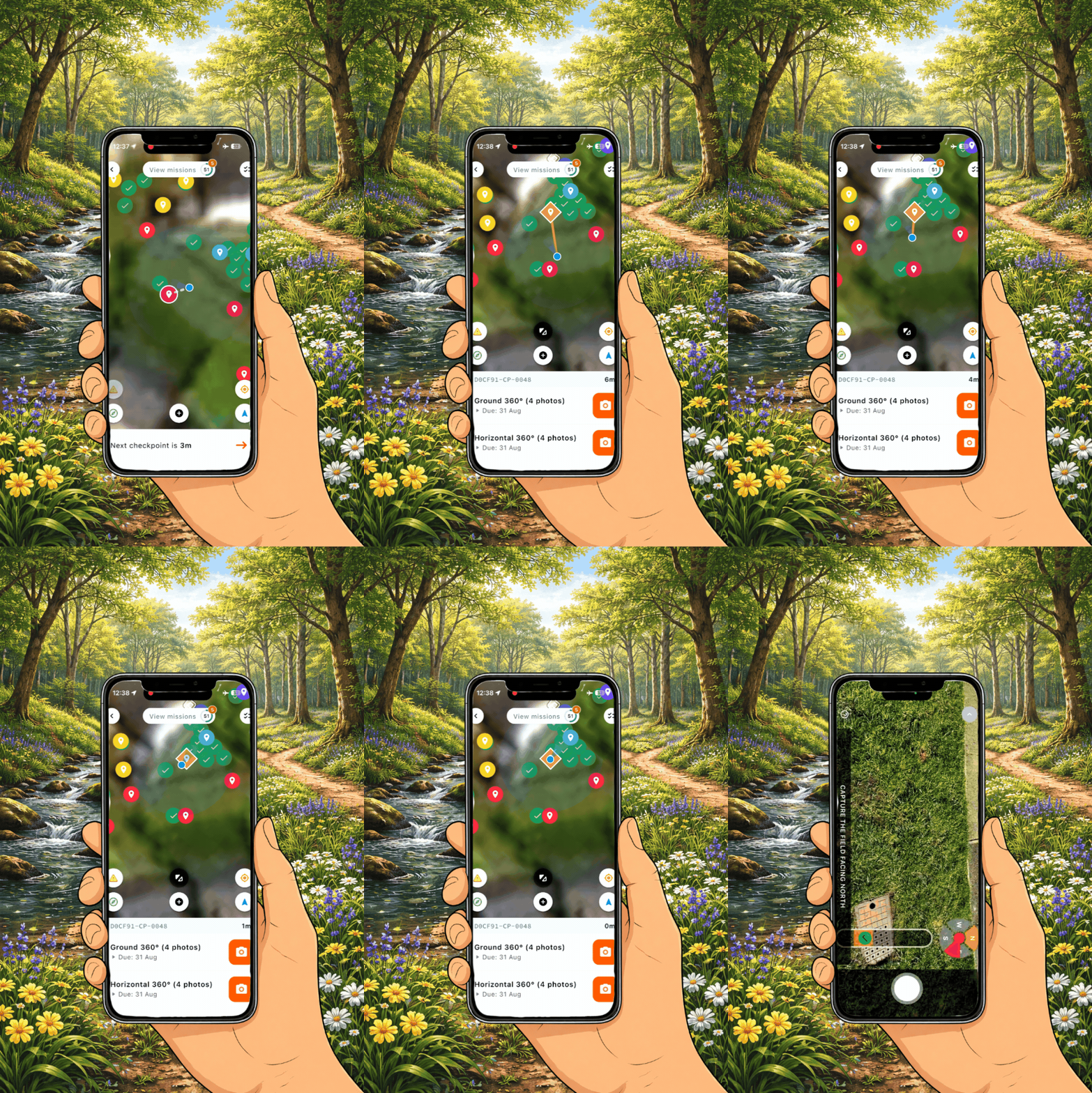
How to select a checkpoint and navigate to the checkpoint location on the Mozaic Earth app.
2.3.2 - Tasks
Once you've reached the checkpoint, you can complete the tasks there. The type of task depends on the habitat at that spot, so it'll vary checkpoint to checkpoint, and each checkpoint can contain one or more tasks (for example, 360° photos, quadrats or hedgerow monitoring).
-
Open task: select the orange camera icon to begin

-
Capture: Rotate your phone to landscape mode and follow the step-by-step on screen instructions for the task.
-
Quality check: Ensure images are clear and in focus before clicking submit. High quality data is essential for accurate analysis.
-
Progress Tracking:
-
Task Complete: Once a task is finished, the task icon will change to a green tick to track progress

-
Checkpoint Complete: When all tasks at a checkpoint are complete, the checkpoint icon on the map turns to a green tick
-
-
Efficiency: After completion, the app will recommend the next closest checkpoint. You can follow this recommendation or manually select your next target from the map:
-
Continue to complete all the checkpoints until all the field work is completed

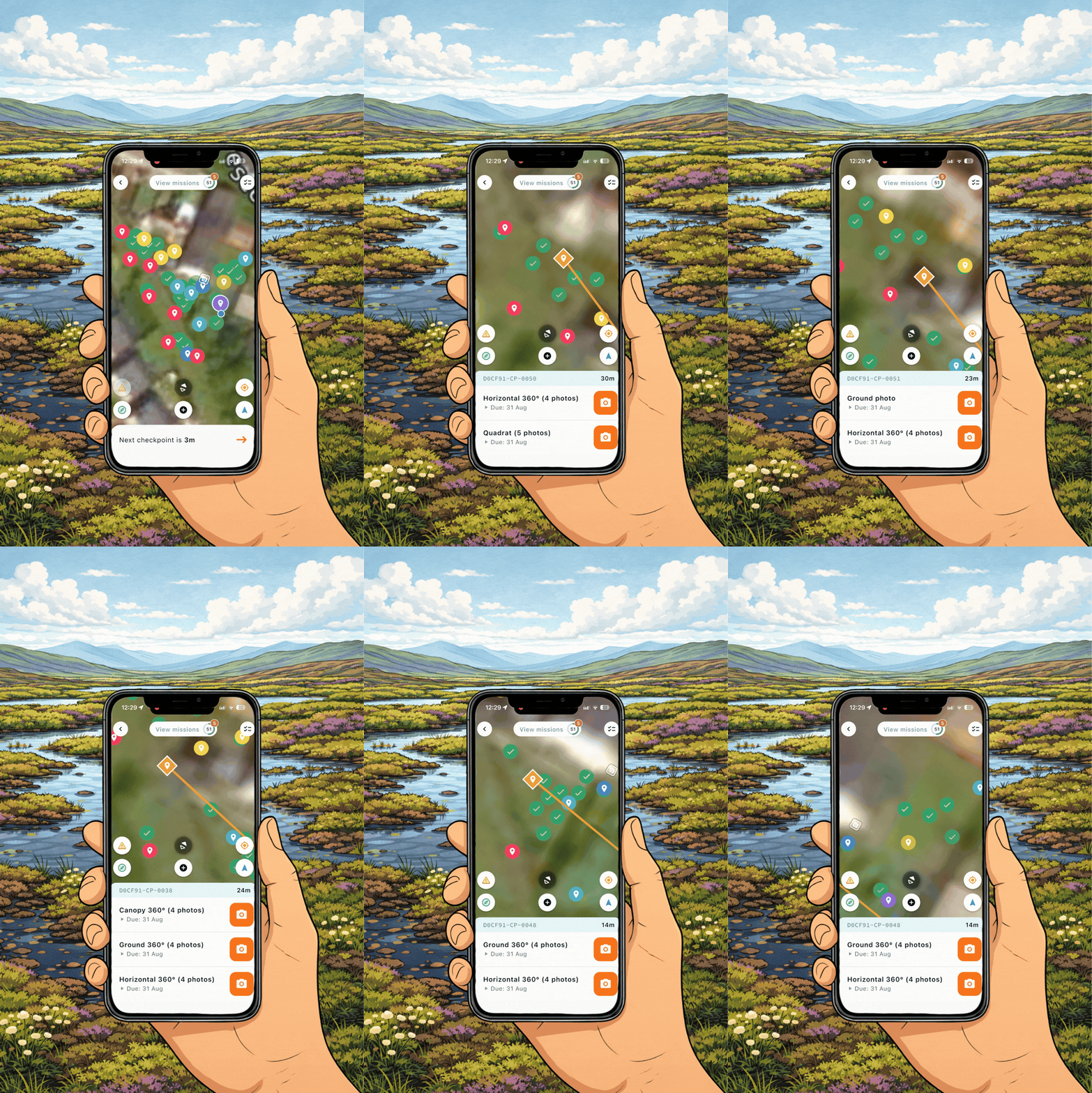
Example of the different task types that you could be asked to complete via the app. \
2.3.3: Inaccessible Checkpoints
Field safety always comes first. Never attempt to reach a checkpoint if it doesn't feel safe, whether that's deep water, steep terrain, or anything else that gives you pause.
-
The 15-metre rule: aim to get within 15 metres of the checkpoint where you safely can.
-
Can't get within 15 metres? Mark the checkpoint as inaccessible using the warning icon, then select a reason and add a note if it's useful.
⚠️ Please DON’T mark a checkpoint as inaccessible and move on. Continue to complete the tasks from a safe distance, even limited data from a safe spot gives the ecologist something to work with, rather than a gap in the sampling plan.
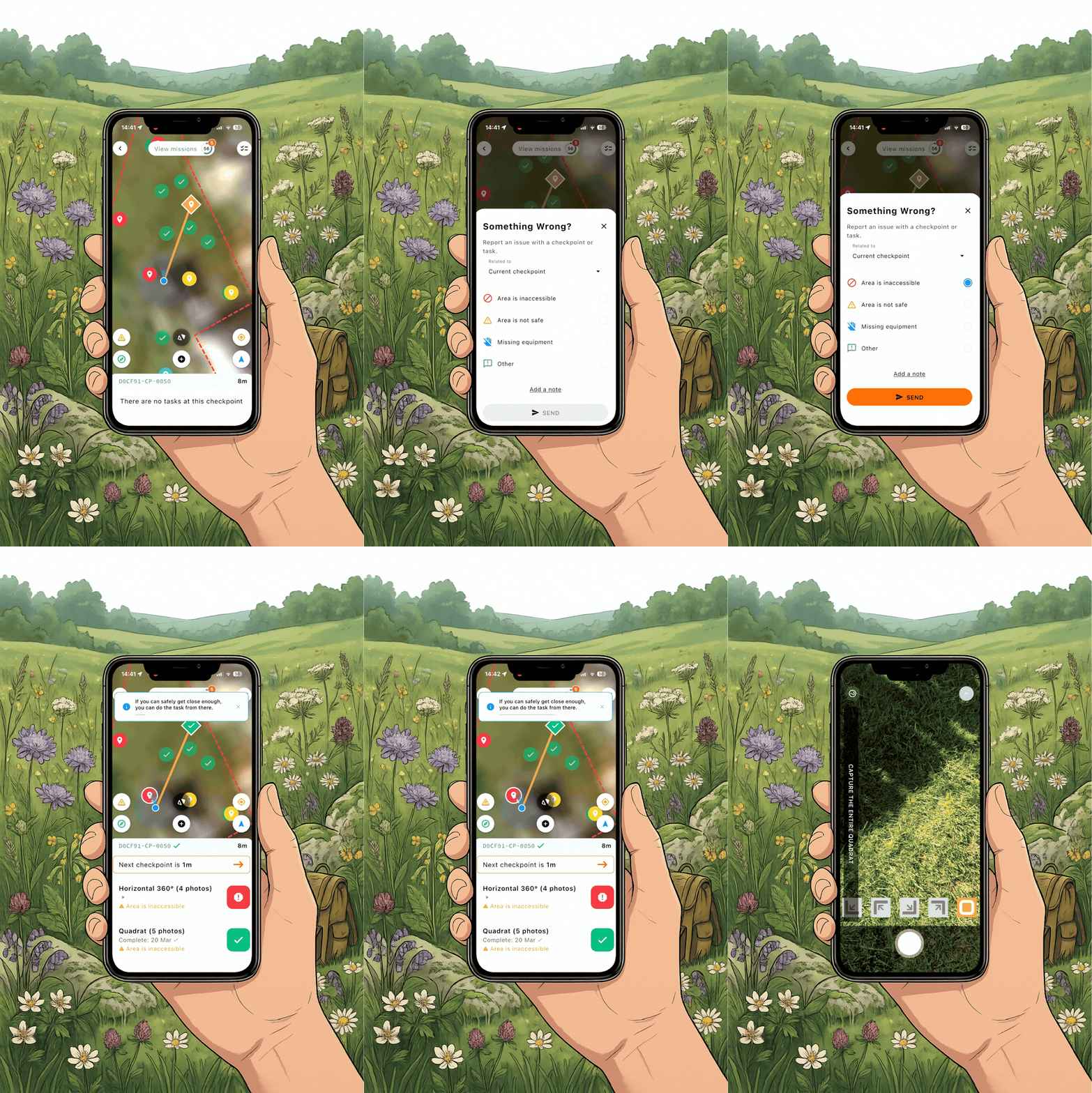
Record an inaccessable checkpoint on the app