1 . 4 - Set-up Sampling Strategy
With your boundaries and plan sorted, it's time to map out exactly where your field team needs to go. Next, you need to create the specific "GPS waypoints" (Checkpoints) your field team will follow. Each checkpoint then needs specific "to-do" items (Tasks).
1.4.1 - Placing Checkpoints
You can set up your sampling strategy in three different ways:
Method A: Mozaic Earth AI Generation
Not sure where to place your points? Let AI do the heavy lifting: we'll generate an optimised sampling plan based on your habitat type and the recommended densities mentioned below.
1. Select your plan (for example, Habitats 2026).
2. Click the three-dot icon next to Checkpoints.
3. Select Request sampling strategy.
4. Choose the property you want to base the sampling plan on (we'd recommend Broad habitat type), then select your Config mode (Default is usually the right choice).
Need something more specific? Let us know and we can configure the AI sampling plan to fit your exact requirements.
5. Set your minimum area. We'd recommend at least 0.1 hectares.
6. Want to narrow things down? You can restrict which features the AI samples! (useful if you only need a plan for, say, grassland habitats only) Select the property and values you want to filter by; you can apply more than one filter if you need to.
7. Happy with your parameters? Click Confirm request.
8. Head back to Checkpoints in the left-hand menu and open the Requested sampling dropdown to check progress. It'll take a moment to generate your plan.
9. Once it's ready, toggle the layer on to view your sampling checkpoints: click the eye icon on the left-hand side.
-
Happy with it? Select Set as layer.
-
Not quite right? Generate a new plan and adjust the parameters until it looks the way you want.
10. Once your sampling plan is set, use the editing tools to refine and finalise your points.
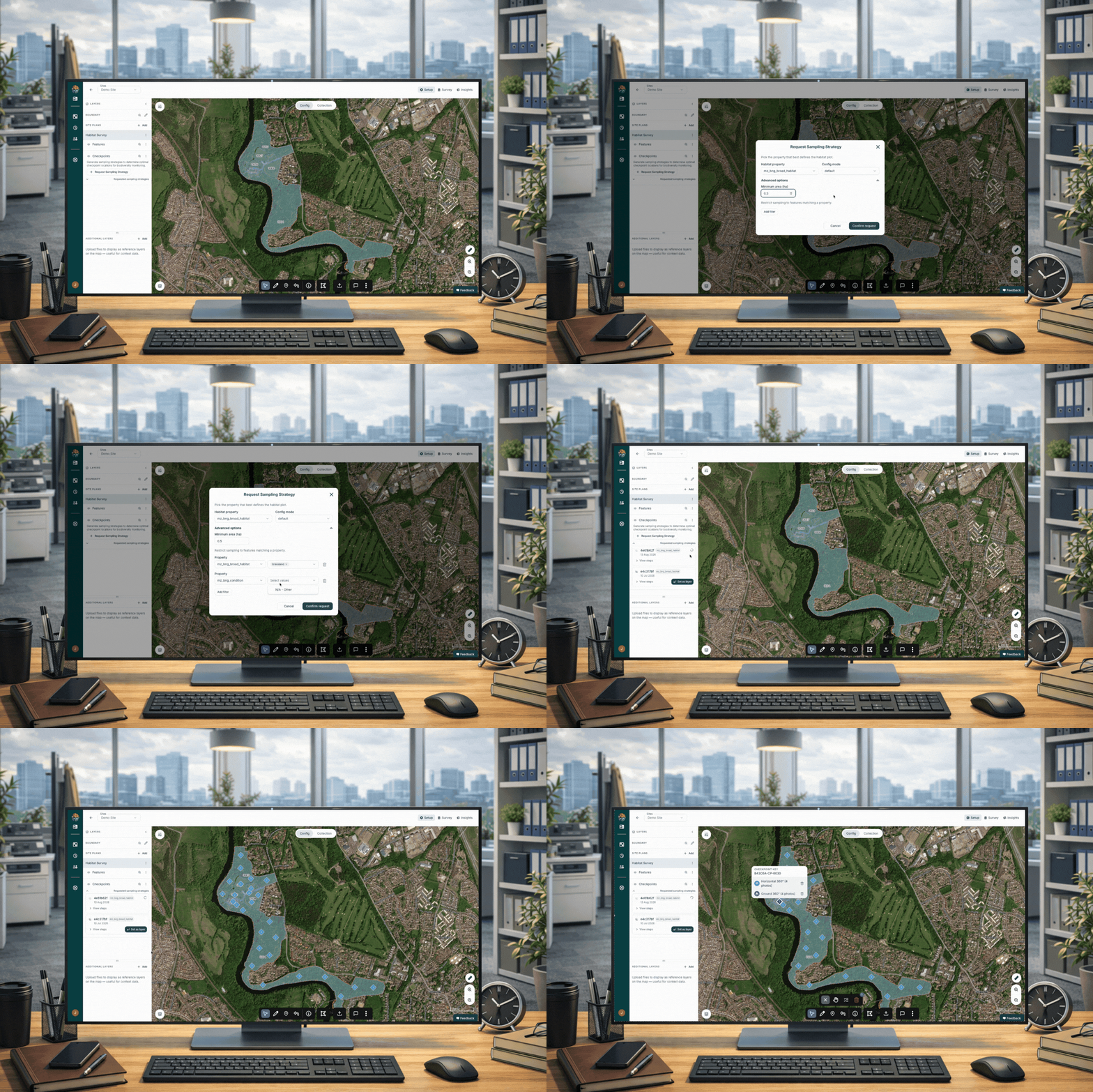
How to generate a sampling plan with Mozaic Earth AI tools
Method B: Upload a Custom Plan
Already got a sampling grid from a GIS specialist? Here's how to bring it in:
-
Select your Plan (e.g., Habitats 2026).
-
In the bottom toolbar, click Upload > Checkpoints.
-
Drag and drop your geojson or zipped shapefile point layer.
-
Check the mini-map to confirm you are happy with the layer
-
Click Upload.
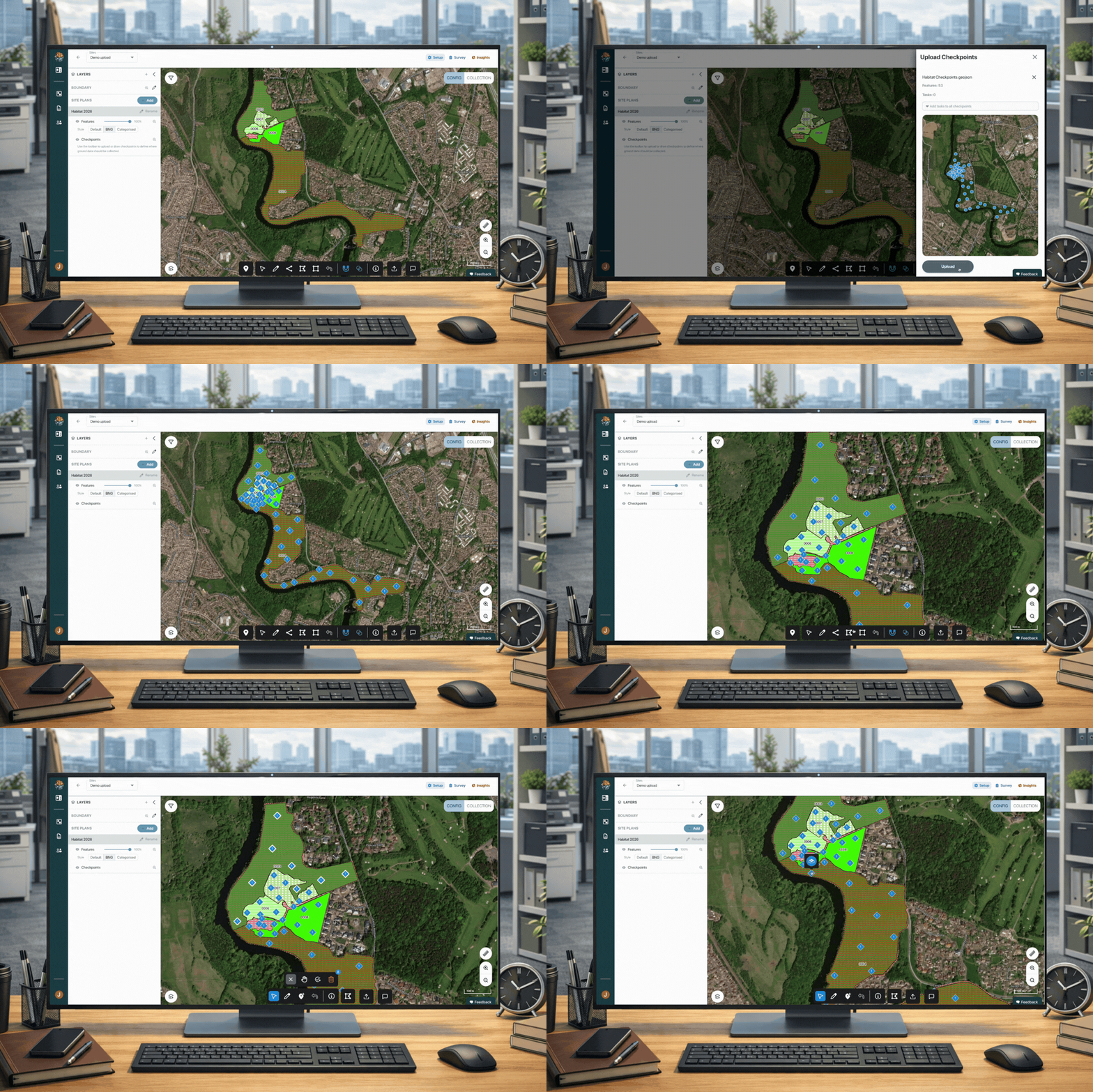
How to upload a sampling plan and assign tasks to checkpoints
Method C: Manual Placement
-
Click the + Checkpoint icon in the bottom toolbar.
-
Click directly on the map where you want the collector to go.
-
Use the Edit button to drag and move points around
-
Made a mistake? Use the Delete or Undo buttons in the toolbar
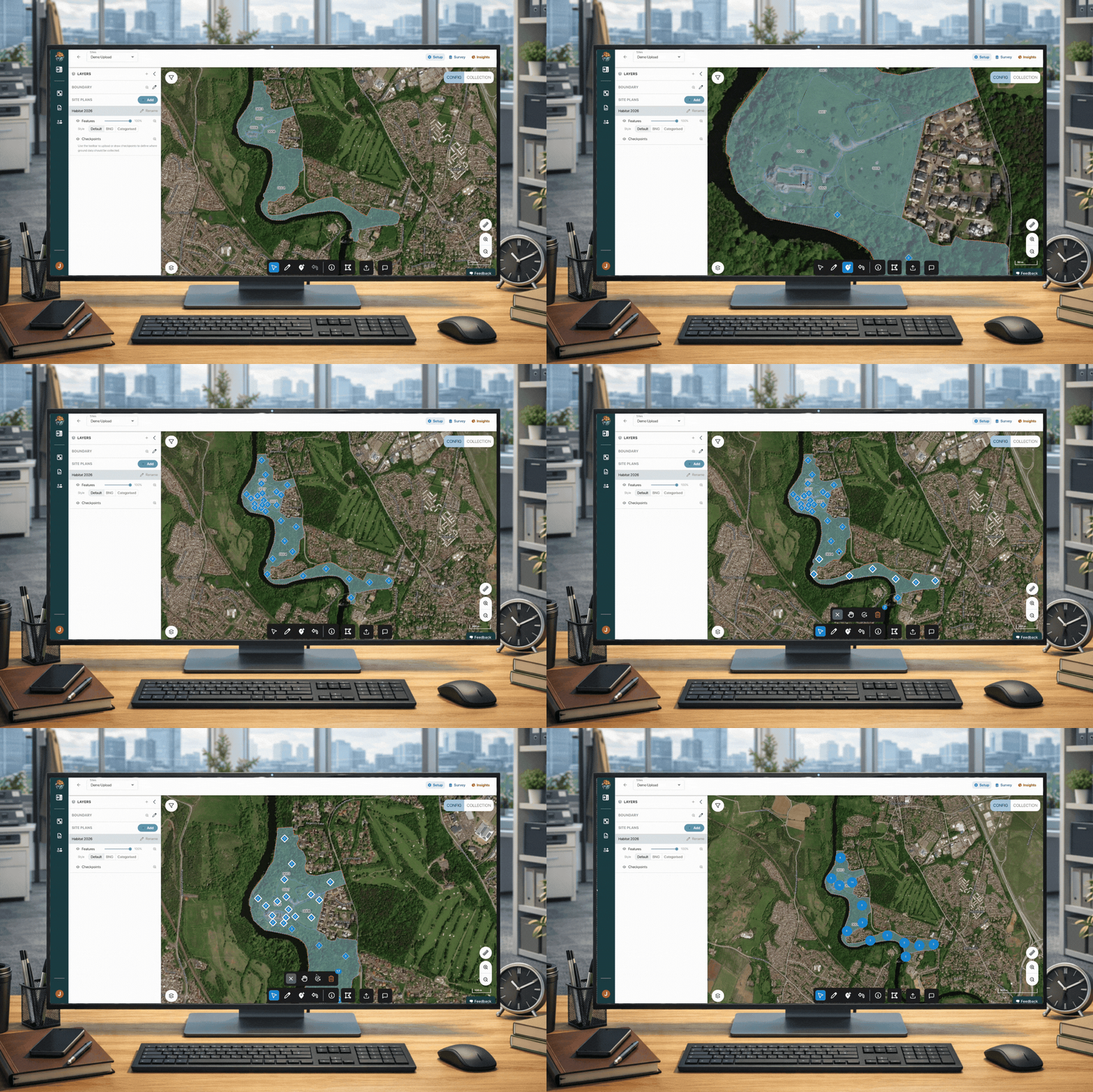
How to manually place checkpoints and add tasks
📍 Pro-Tips for Point Placement
-
Safety: Never place points in water or hazardous areas, safety always comes first.
-
Avoid Edges: Keep points inside the parcel so the collector is clearly within the right habitat, this accounts for any GPS fluctuation.
-
Distribution: Spread points across the entire parcel rather than clustering them in one corner.
-
Balance Access & Accuracy: Position points near obvious entrances or access points to save your field team time, but keep them far enough from paths that the data still reflects the wilder areas too.
1.4.2 - Average point density from the Mozaic Automated model
We want your data to be scientifically solid without running your field team ragged, so here's how we automate sampling point densities for each habitat type:
| Habitat type | Point denisty (per ha) | Minimum points per parcel |
|---|---|---|
| Woodland | 1.5 | 3 |
| Arable (Field) | 0.3 | 1 |
| Arable (Field Margins) | 0.4 | 2 |
| Grassland | 0.4 | 2 |
| Heathland / Wetland | 0.4 | 3 |
| Urban | 0.3 | 1 |
| Hedgerow | 1x per 20 meters (5m offset) 1x beginning (width measurement) | N/A |
| Line of Trees | 1x per 20 meters (15m offset) | N/A |
1.4.3 - Adding Tasks
A checkpoint with "0" tasks assigned won't show up as something to do in the mobile app, so you'll need to add tasks to tell your collector what to capture.
-
Click a checkpoint on the map to select it
-
Click the Add Task icon to see the list of available tasks (e.g., Horizontal 360°, Quadrat and so on).
-
Once you've picked one, the number on the checkpoint will jump from 0 to however many tasks you've assigned.
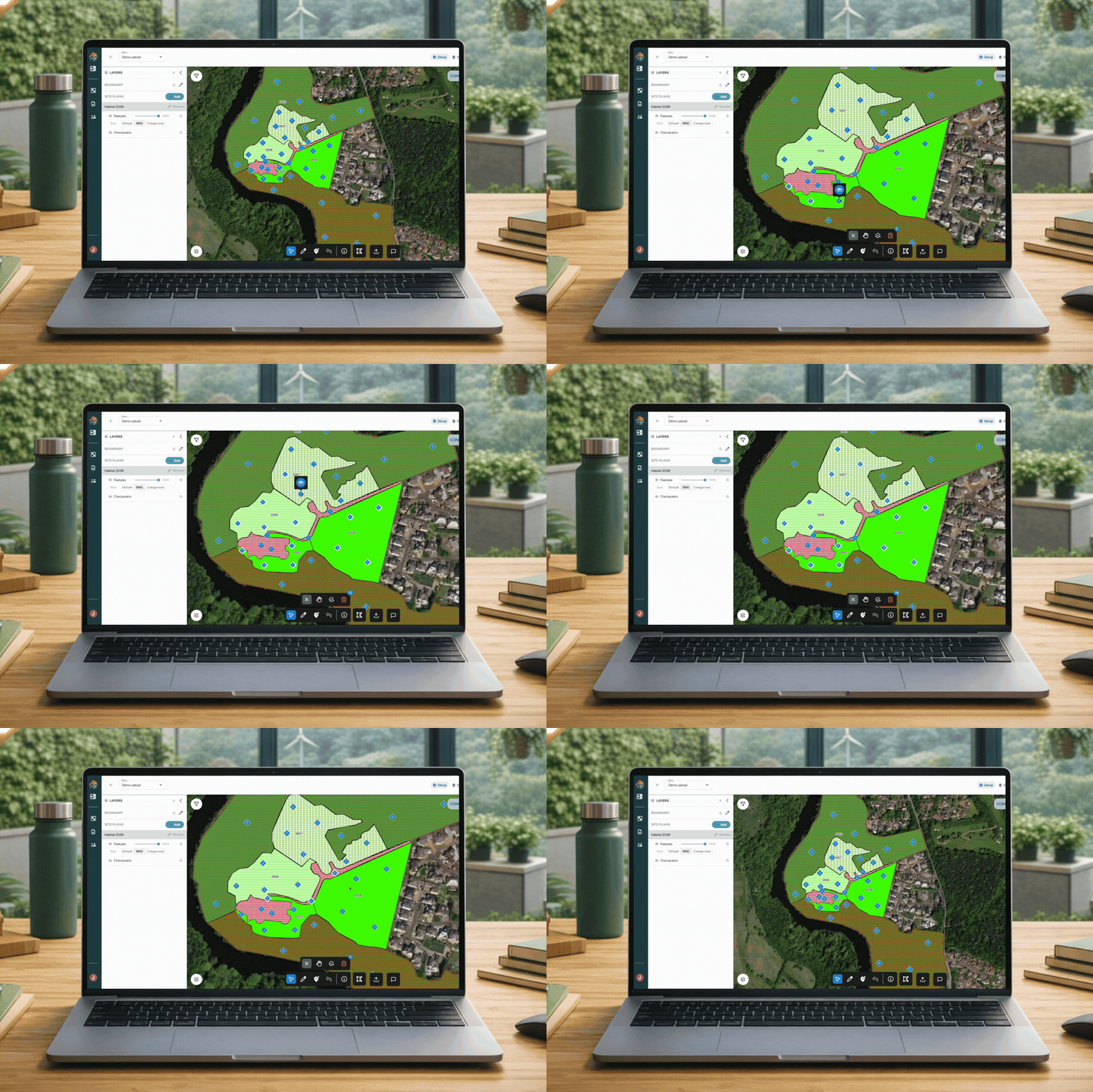
💡 Pro Tip: Speed Up Your Workflow (Bulk Actions)
Don't add tasks one by one, there are quicker ways!
-
Select All: Press Ctrl + A to select every checkpoint on the map.
-
Box Select: Hold Ctrl and drag a box around a specific group of points.
-
Specific Select: Hold Shift and click individual checkpoints to group them.
-
Bulk Assign: Once multiple points are selected, click Add Task once to apply that task to the entire selection.
1.4.4 - Recommended Task Types
Tasks are built to be intuitive, so your collectors don't need any ecology experience to use the app. Once they reach a checkpoint, the app will guide them through exactly what to do.
Here's a rundown of the task types and what each one involves:
| Task Name | Decription |
|---|---|
| 360° Ground | 4x images, taken north/east/south/west, camera tilted towards the ground |
| 360° Horizontal | 4x images, taken north/east/south/west, camera tilted towards the horizon |
| 360° Canopy | 4x images, taken north/east/south/west, camera tilted towards the forest canopy |
| Ground photo | 1x image, facing the ground |
| Quadrat | 5x images: 1 of the full quadrat, and 1 of each corner |
| Hedgerow beginning for width | 1x image facing the start of a hedgerow, to capture its width |
| Hedgerow side-side views | 3x images: one facing the hedgerow, one angled left, one angled right |
| Tree side-to-side views | 3x images: one facing the line of trees, one angled left, one angled right |
| Bioacoustic: Install + retrieve | Photograph the sensor ID and installation location; on collection, photograph the sensor's removal. For device-specific configuration, contact us. |
| Invertebrate: Install + retrieve | Photograph the installed traps along the transect line; on retrieval, photograph and scan the unique identifier for the eDNA sample to track its geolocation. For workflow-specific configuration, contact us. |
And here's how our automated model allocates tasks by habitat type:
| Habitat type | Tasks per checkpoint | Task Types |
|---|---|---|
| Woodland | 3 | Horizontal 360°, Ground 360°, Canopy 360° |
| Arable (Field) | 2 | Horizontal 360°, Ground 360° |
| Arable (Field margins) | 2 | Horizontal 360°, Quadrat |
| Grassland | 2 | Horizontal 360°, Quadrat |
| Heathland | 2 | Horizontal 360°, Quadrat or Ground |
| Urban | 2 | Horizontal 360°, Ground 360° |
| Wetland | 2 | Horizontal 360°, Quadrat or Ground |
| Hedgerow | 1 | Hedge side-side views, Hedge beginning for width |
| Line of trees | 1 | Tree side-to-side views, |